Skyrim Mods
Skyrim Mods in Linux
Prerequisites
- Linux Distro: Endeavor OS (or similar Arch-based; adjust package manager commands if needed, e.g., use `apt` on Ubuntu).
- Steam: Installed system-wide (e.g., via `sudo pacman -S steam`).
- Skyrim: Special Edition or Anniversary Edition owned on Steam. Launch it once via Steam (using Proton) to create the game prefix and download any Creation Club content.
- Internet: For downloads.
- Hardware: Standard gaming PC capable of running Skyrim. duh...
Tutorial source: Full video below
1. Install Skyrim via Steam
- Go to https://store.steampowered.com/about/ → Download Linux (.deb).
- Or terminal:
-
wget -O steam.deb https://steamcdn-a.akamaihd.net/client/installer/steam.debsudo apt install ./steam.deb - or, use flatpak in step 2.
-
Launch Steam (Flatpak), log in.
-
Install Skyrim Special Edition (or original Skyrim) as usual.
-
Once installed, run Skyrim at least once to let it create its config / prefix / compatibility files.
-
In Steam, go to game Properties → Compatibility and enable Proton (or a compatible Proton build) to ensure the Windows version runs properly. Many mod-compatibility tools expect Windows behavior. Steam Community+1
Note: If you already have Skyrim installed: Just log in and quit.
2. Install Flatpak and FlatHub
1. Open a terminal and update packages:
sudo apt update
sudo apt install flatpak      # if flatpak isn’t installed already
flatpak remote-add --if-not-exists flathub https://flathub.org/repo/flathub.flatpakrepo
Then install apps:
- If you dont have steam yet...
flatpak install -y flathub com.valvesoftware.SteamOr,
- Go to https://store.steampowered.com/about/ → Download Linux (.deb).
- Or terminal:
-
wget -O steam.deb https://steamcdn-a.akamaihd.net/client/installer/steam.debsudo apt install ./steam.deb
After installing steam (or if you already have it):
flatpak install -y flathub com.usebottles.bottles
flatpak install -y flathub com.github.tchx84.Flatseal
3. Use Flatseal to fix permissions, if needed
This gives you permissions for Bottles.
- Run Flatseal (via Flatpak).
- In the left nav bar, choose "Flatseal"
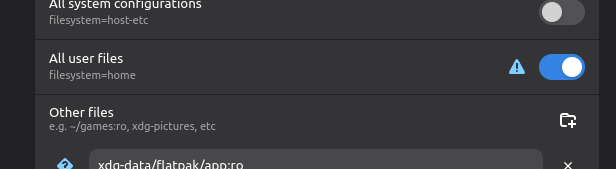
- Scroll down to "All user files" and turn it on. It gives permissions for the /home directory.

- If Steam is installed in a different location, go down to "Other files" and choose were that directory is so it can have access to that.
- Do the same for Bottles: grant it access to wherever you plan to store mod-tool installations, mod files, etc.
4. Create a Wine “bottle” (prefix) for modding tools via Bottles
-
Launch Bottles.
-
Create a new bottle: choose “Gaming”, 64-bit (for Skyrim SE), name it e.g.
skyrim-mods.
It might have already done this next part for you: In that bottle, configure a runner — choose a modern Wine-based runner or a Proton-GE variant if available (Bottles often gives you that option).
This provides a Windows-like environment for mod tools.
Go to hamburger menu:
- Preferences
- In "integrations"
- turn on "Steam Proton Prefixes"
- now completely close Bottles. OFF! X out of it!
Reopen bottles. You should see the Elders scrolls in there now... and/or all your other games that are using proton.
Choose Skyrim. <click>
5. Install a mod manager inside the Bottle (Vortex)
Using the Bottle you created:
-
But first, Download the vortex executable.
When downloading, it should tell you the requirements needed. Windows, dont worry about it. We do need to worry about the other one. Currently tells me ".net 6.0+" but, make sure on what it says for you first.
Go back to Bottles.
If you are not already at the right place...Click on:
- Steam Proton: "the Elder Scrolls" or whatever your Skyrim game is named there.
- Scroll down to Options
- Dependencies
- Choose "dotnetcoredesktop6" (or whatever your requirement said)
-

- Dependencies
-
Run the installer inside the Bottle (i.e. via Bottles/Wine), so MO2 is installed in that prefix.

You should be done with that part in Bottles. Now, go back to the Nexus site and download the vortex.exe.
Back to Bottles.
- From the main screen/menu, click into "steam Proton" Skyrim game.
- in Quick actions (hopefully) you will see to "run executable" click on that.
- choose vortex.exe you just downloaded
- Install it there or somewhere else if you want
- Uncheck the "run Vortex" and click finish.
- Install it there or somewhere else if you want
- choose vortex.exe you just downloaded
Lets created a shortcut for it in Bottles
You should first find where Vortex is.
- Go to Brows Files. (it should be next to the run executable or hamburger menu)
- click into /Program Files/Black Tree Gaming Ltd/Vortex | here will be your .exe
- Now copy the whole directory
- After copying the directory location, exit out or, just go back into Bottles
We are still in the game, in Bottles:
- Under "Programs" click on "+ Add Shortcuts..."
- Paste in the path there and choose the "Vortex.exe"
- Note: it did not let me paste the directory path. I had to go into manually
- Note: it did not let me paste the directory path. I had to go into manually
Now under "Programs" you should see both Skyrim and Vortex.
Run it to test...
6. Install some things in Vortex
Start by Managing a game. Find where to manage Skyrim and add it to the manager. Choose the right version. Mine is Skyrim Special Edition.
In settings
- Mods tab
- In "mods Staging "folder" Press the orange button to "Suggest" a location for it. Use that location and apply.
- Copy the file path Z:\home\danicus\Vortex Mods\{game} bur remove "{game}"
- Downloads tab
- Paste in the path but add downloads to the end Z:\home\danicus\Vortex Mods\downloads
- Apply
Now you can download mods.
7. Install SKSE64 Script Extender running
- Go to Steam and right click on Skyrim.
- Slide down to Manage
- click on Brows Local Files (keep this open for now and add the below files in)
go here https://skse.silverlock.org/
- Flollow the instructions to get the skse64 file/folders installed so that you put the correct files in the correct place.
Once you have all the files where there go...
Change the .exe name
You should be in the same directory as #3 in this section.
- Find SkyrimSELauncher.exe and rename it to SkyrimSELauncher.exe.og (original gangsta)
- Find skse64_loader.exe and rename it to the Skyrim launcher name "SkyrimSELauncher.exe"
- uh... thats about it.
Go play.
🛠️ Common Issues & Troubleshooting Tips
Based on community reports and recent 2025 experiences:
-
Mod manager fails to detect game — Often due to Steam Flatpak’s folder structure; ensure MO2 is pointed to the correct Steam library path.
-
Permission errors / missing files — Use Flatseal to give Steam/Bottles access to the correct directories; “host” filesystem permission often solves many sandbox issues.
-
Mods with complex dependencies (SKSE, ENB, animations) misbehave — Make sure required dependencies (Visual C++ runtime, .NET if needed, correct SKSE version) are installed in the Bottle. Many Linux-modding guides highlight this. spacebums.co.uk+1
-
Performance / load-time issues — For heavily modded installs, using an SSD for game + mods improves load times significantly. This is a common recommendation in modding-on-Linux guides. spacebums.co.uk+1
-
ENB or advanced graphics mods may be finicky or unstable under Proton/Wine — ENB support on Linux remains hit-or-miss; some modders succeed, some don’t. Many guides treat ENB as “special case” and caution it may require extra tinkering.
Tutorial source:
https://www.youtube.com/watch?v=48kKsspKRiU